The tool is Video Compressor. Your video is decoded and re-encoded on your own device, so it is never uploaded to any server. The result is an MP4 (H.264 video with AAC sound) that plays almost everywhere.
For MP4 and MOV files it works frame by frame, usually faster than the length of the video. Other formats use a slower compatibility mode that produces a WebM.
1Open the tool
Go to Video Compressor. No account and no watermark.
2Add your video
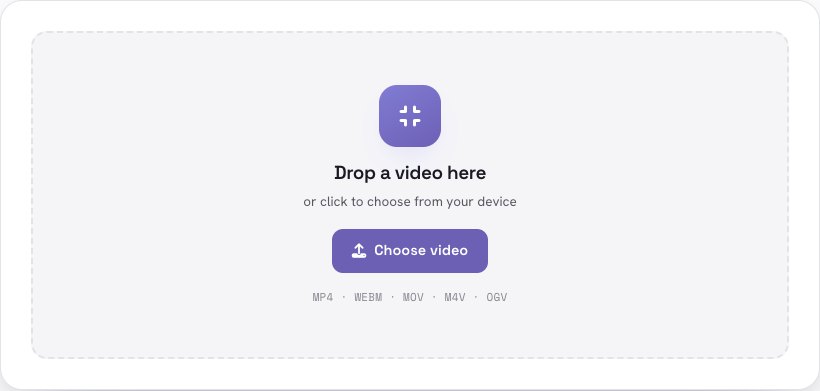
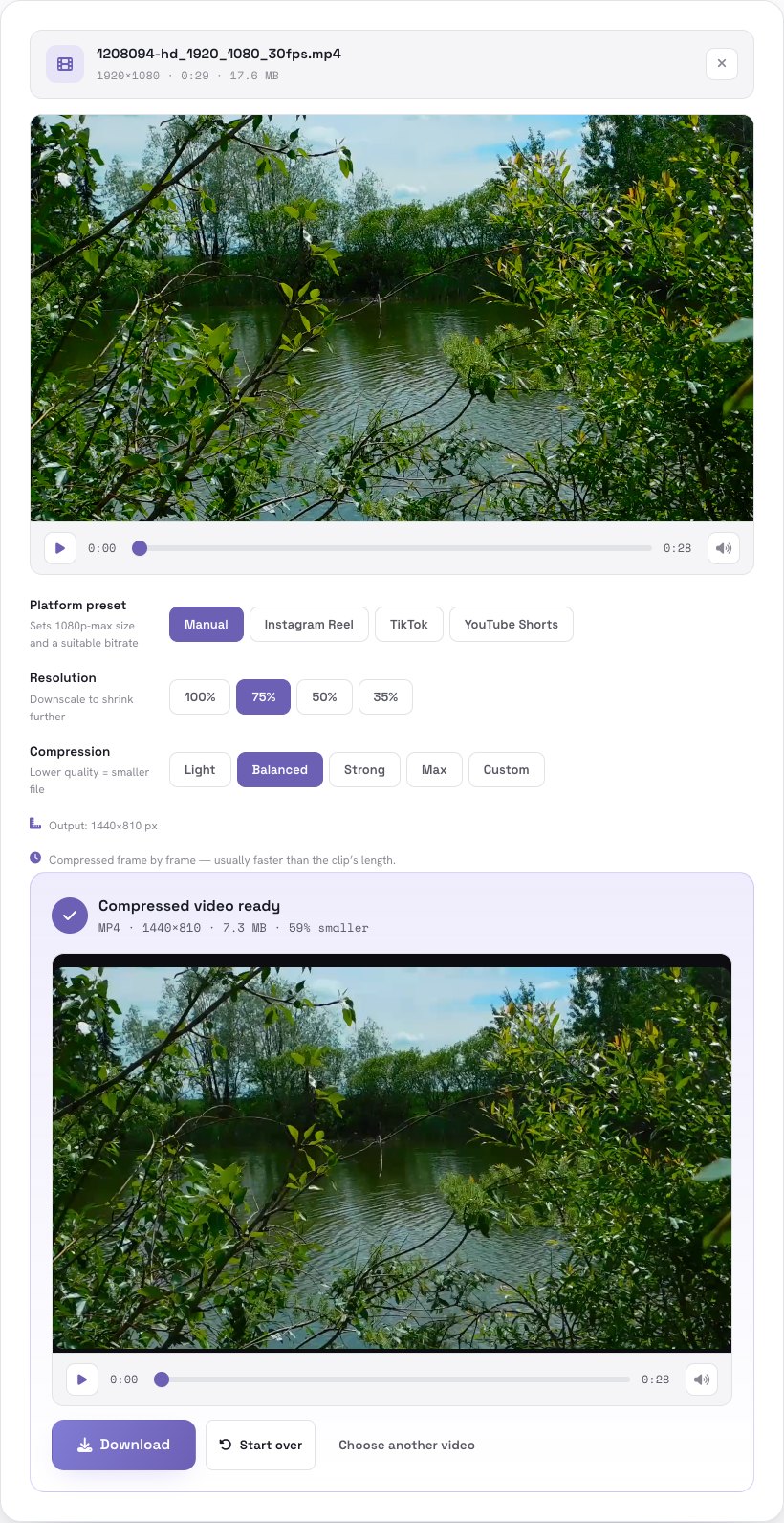
Drop the video or click to choose it. A player appears so you can check it is the right file. You will see its size, length and resolution.
3Choose how much to shrink it
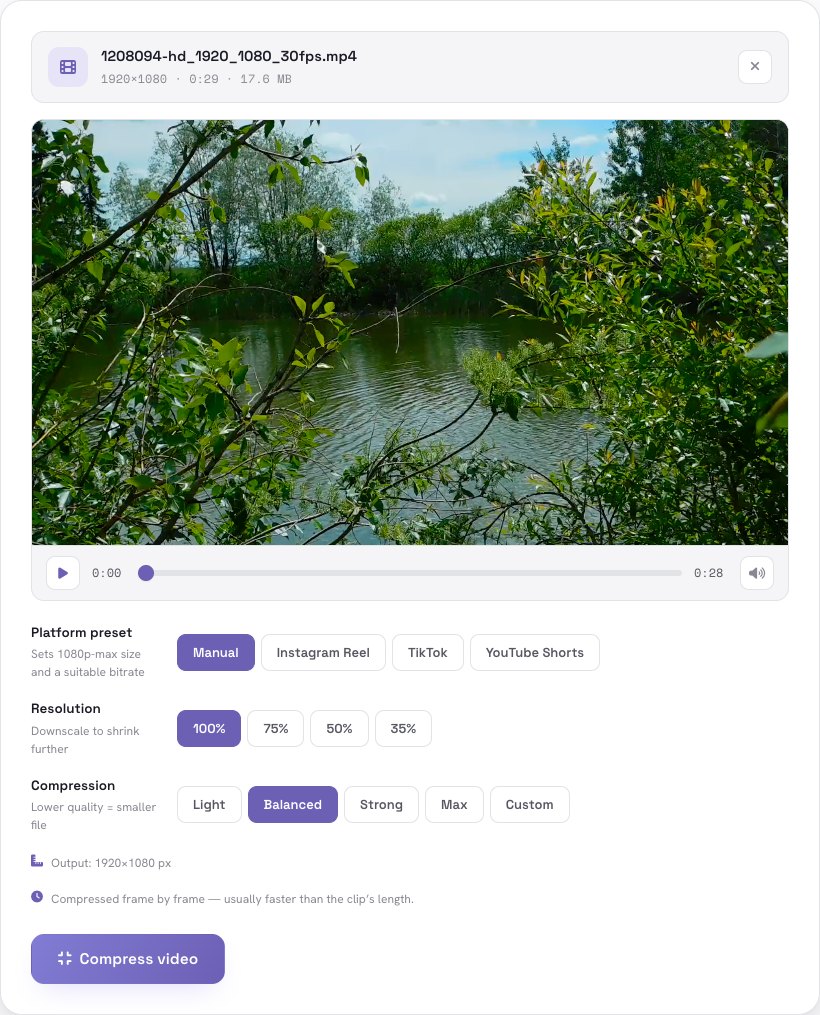
There are three controls:
- Platform preset — Instagram Reel, TikTok or YouTube Shorts set a 1080p-maximum size and a suitable bitrate in one click. Leave it on Manual to choose yourself.
- Resolution — 100%, 75%, 50% or 35% of the original. Resolution has the biggest effect on size, so start here.
- Compression — Light, Balanced, Strong or Max, or Custom to set the exact target bitrate. Lower quality means a smaller file.
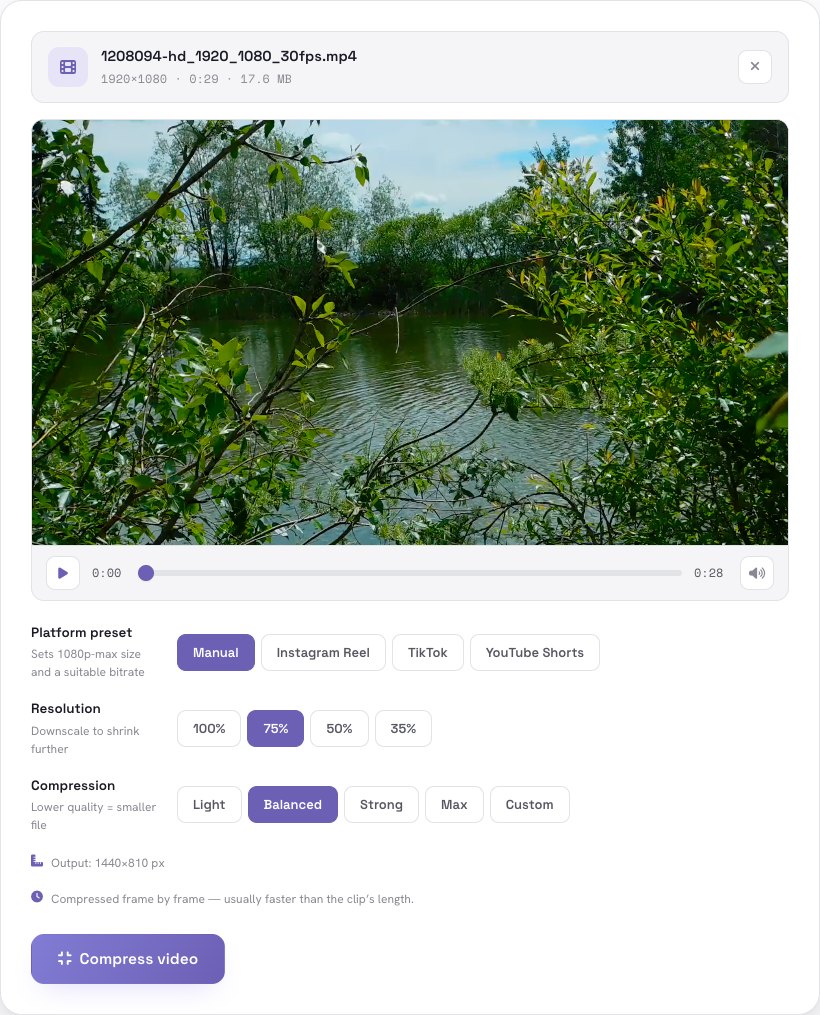
The tool shows the output size in pixels as you choose. In our test we used 75% resolution and Balanced.
4Compress and check the result
Press Compress video. A progress bar shows how far it is. When it is done you see the new size and how much smaller it is. Play the result to check it, then Download. The original file is never changed.
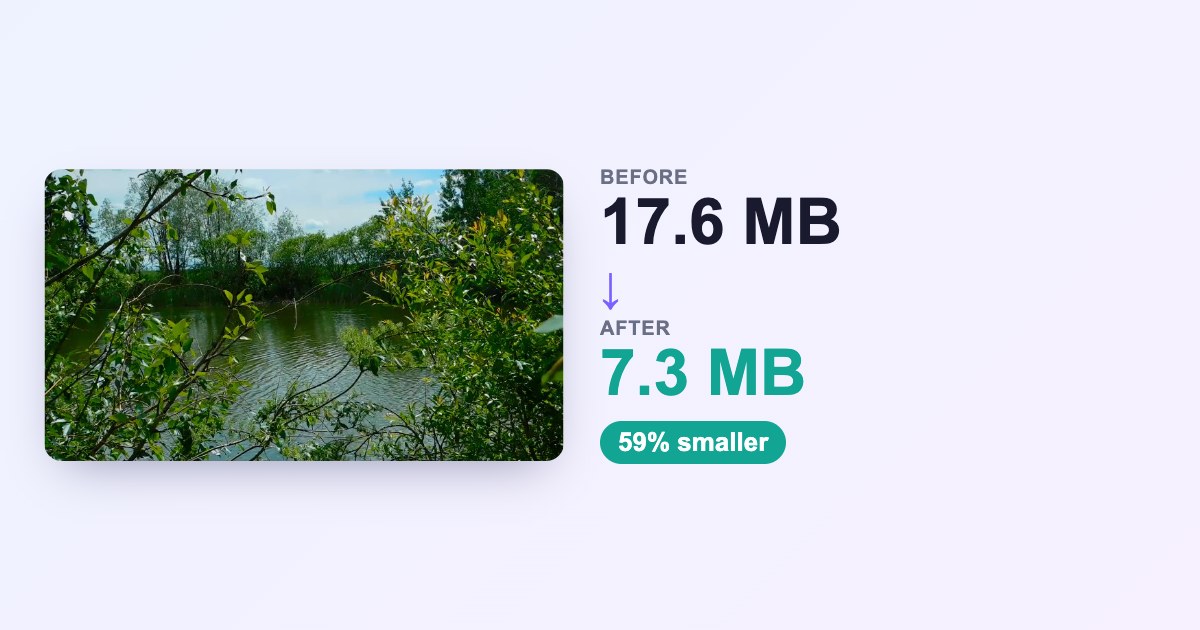
In our test, the 28-second 1080p clip went from 17.6 MB to 7.3 MB — 59% smaller — and took a few seconds in Chrome.
Tips for getting the size down without hurting quality
- Resolution first. If the video will be watched on a phone or in a chat, 720p or 75% of 1080p looks fine and saves a lot.
- Pick the right preset for social. Social apps re-encode what you upload anyway, so sending a huge original does not help. The Reel, TikTok and Shorts presets cap the size at 1080p with a sensible bitrate.
- Busy footage compresses less. Water, leaves and fast motion hold a lot of detail; talking-head videos shrink much more.
- Sound stays. The audio is carried into the compressed file.
- Need a specific size? Use Custom and set the bitrate: file size is roughly bitrate × length.
Need a smaller video for email or chat? Try it — your video never leaves your device.
Open Video Compressor →Frequently asked questions
Is it free?
Is my video uploaded?
Will it lose quality?
How long does it take?
What format is the output?
Can I choose the exact size?
The example video is a stock clip. Numbers are from a real run in Chrome and will vary with your video and computer.