
The tool is Video to GIF. Your video is decoded and turned into frames on your own device, so it is never uploaded to any server.
You need a video that your browser can play — MP4 and WebM work almost everywhere. Keep the part you want short: GIFs get big quickly.
1Open the tool
Go to Video to GIF. There is nothing to install and no account.
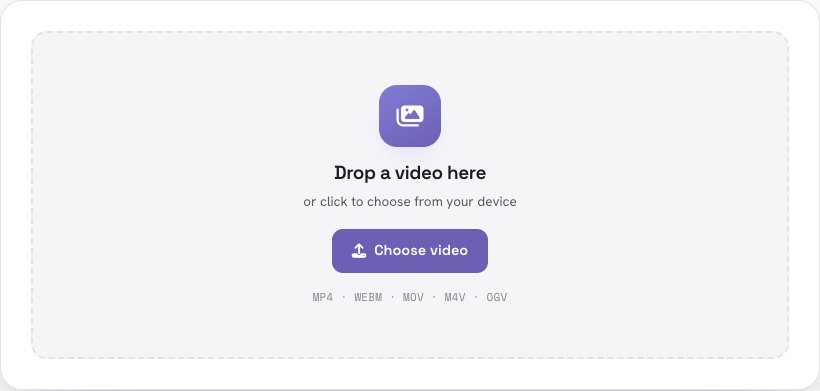
2Add your video
Drop a video onto the box or click to choose a file. The video appears with a player, so you can scrub through it and find the moment you want.
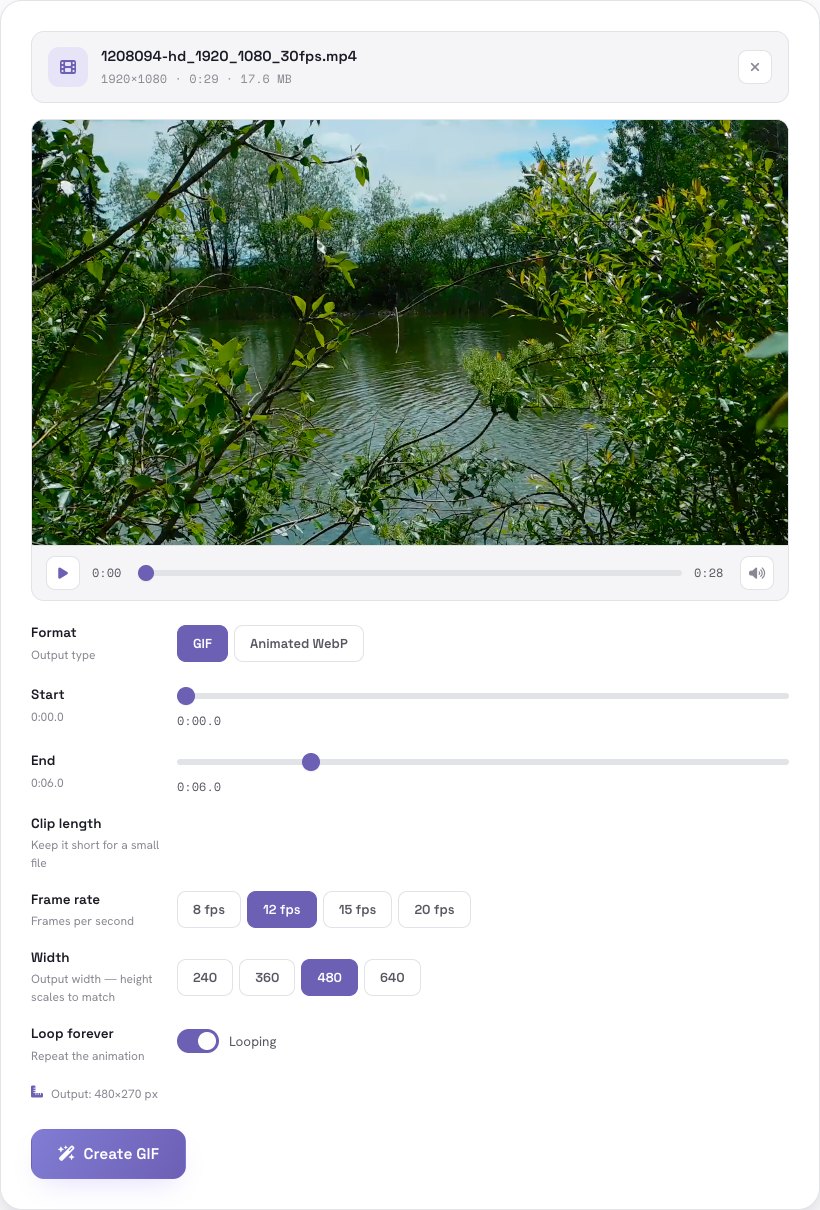
3Pick the part and the settings
Use the Start and End sliders to choose the moment. Then set:
- Frame rate — 8, 12, 15 or 20 frames per second. Higher is smoother, and bigger.
- Width — 240, 360, 480 or 640 pixels. The height follows automatically.
- Format — GIF works everywhere. Animated WebP (shown in browsers that can create it, such as Chrome and Edge) is much smaller for the same quality.
- Loop forever — on by default.
The tool shows the output size under the settings.
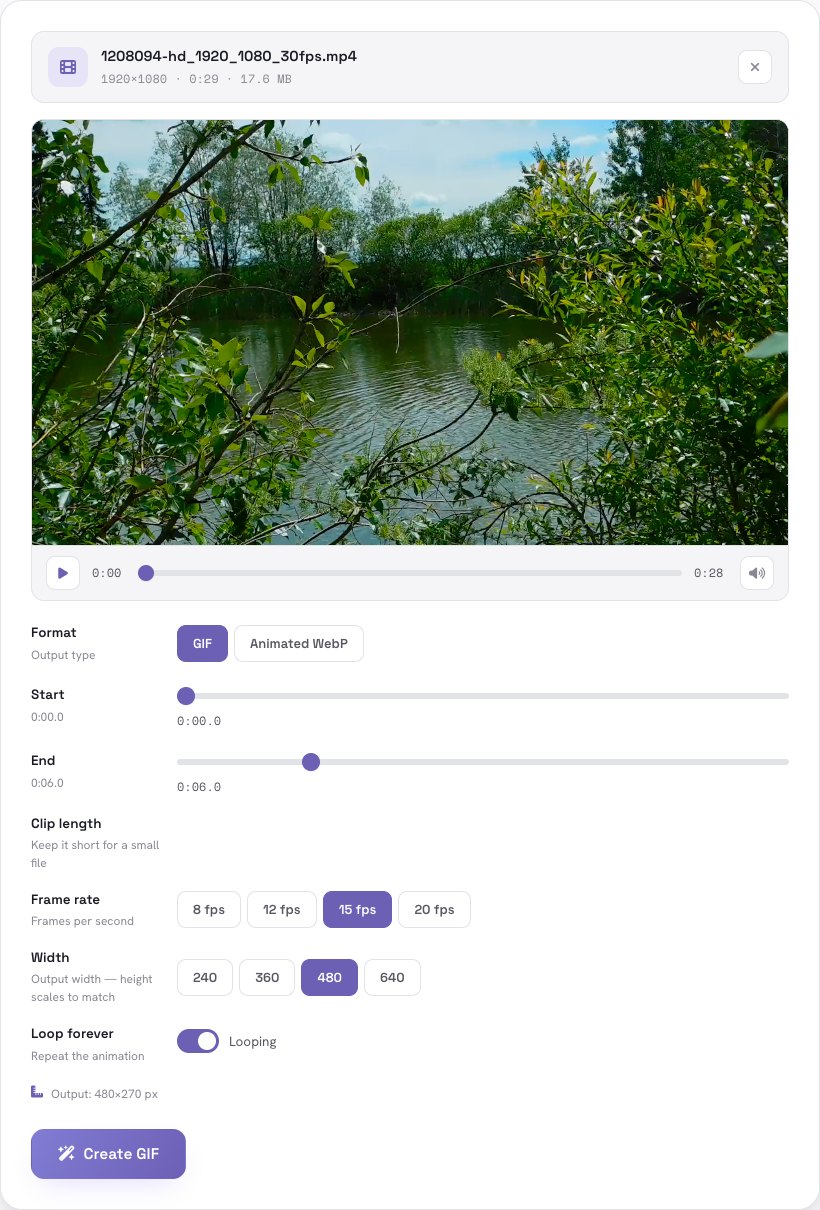
4Create and download
Press Create GIF. When the animation is ready you see a preview and the file size. If you like it, press Download. If it is too big, press Start over, shorten the clip or lower the frame rate and width, and try again.
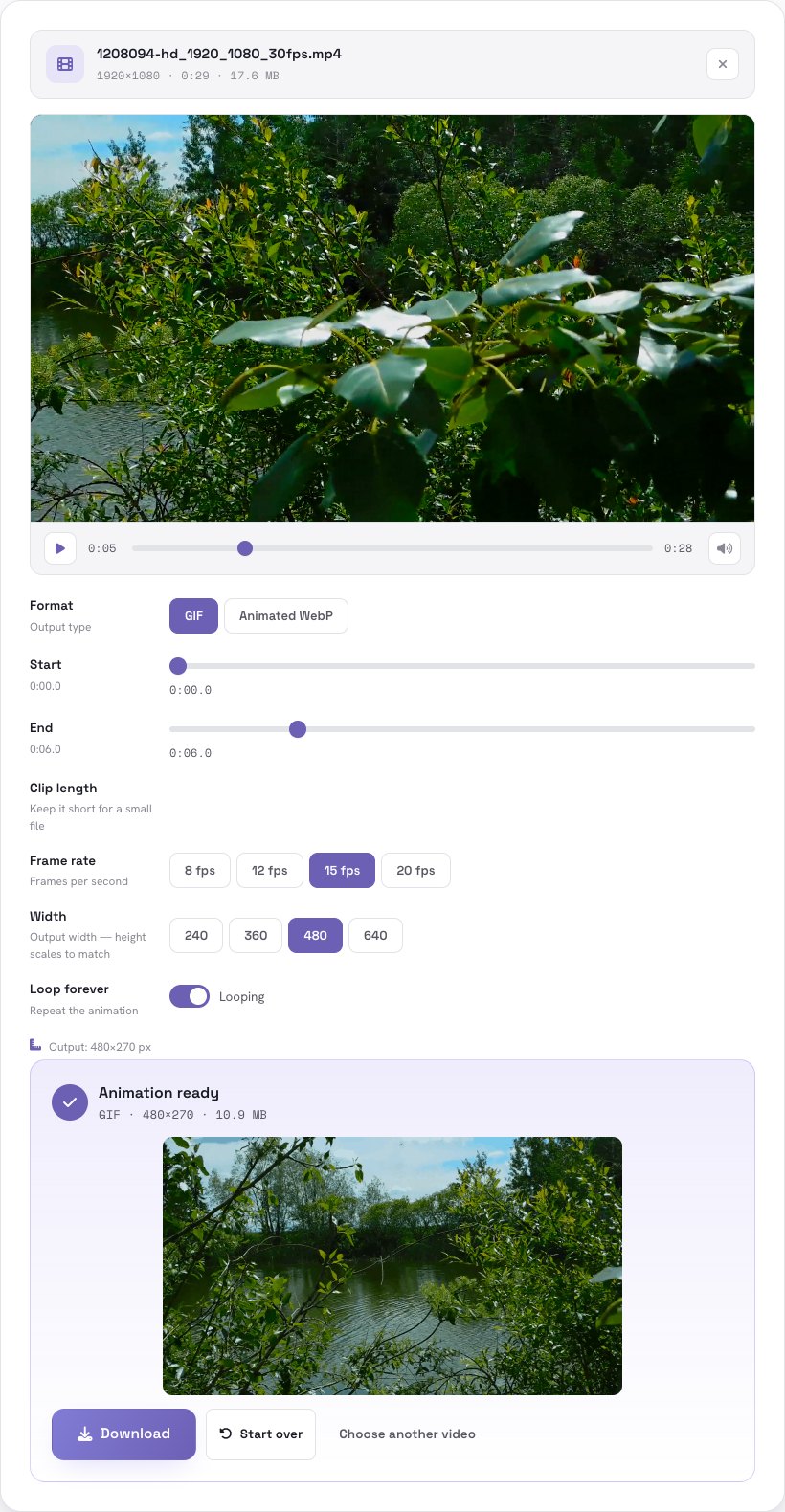
Tips for a small, smooth GIF
- Shorter is better. Two to six seconds is the sweet spot. Each extra second adds a lot of data.
- Busy footage makes big files. In our test, a 6-second clip of leaves and moving water at 15 fps and 480 px wide came out at about 11 MB, because every frame is full of detail. A calmer scene with large flat areas is far smaller.
- Lower the numbers to shrink it. 12 fps and 360 px wide is usually plenty for chat and social posts.
- Try Animated WebP if the place you are posting supports it: it is much smaller than GIF.
- Cut out the boring start. Move the Start slider to the action so every frame counts.
Have a clip you want to loop? It takes about a minute and the video never leaves your device.
Open Video to GIF →Frequently asked questions
Is it free?
Is my video uploaded?
Why is my GIF so big?
Which video formats work?
Can I make a GIF from a very long video?
What is the difference between GIF and animated WebP?
The example video is a stock clip. GIF encoding uses gif.js (MIT) running in your browser.