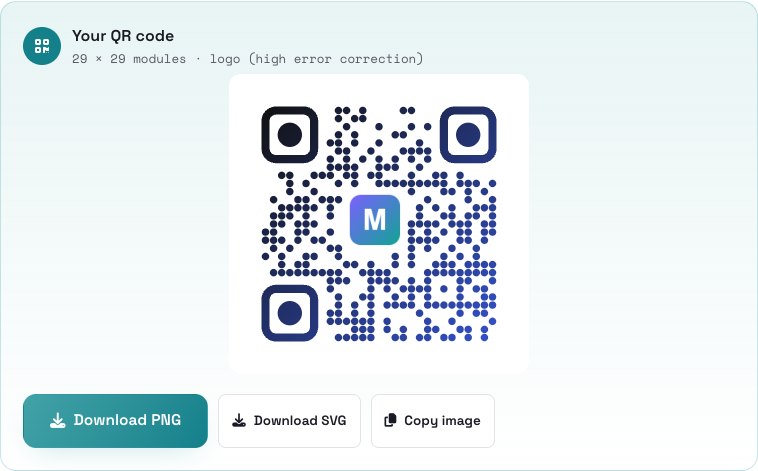
The tool is the QR Code Generator. The code is built on your device, so what you type is never uploaded to any server. The codes are static: they contain your link or text directly, so they do not depend on any service and never expire.
You need whatever the code should hold — a web address, a Wi-Fi name and password, an email, a phone number and so on — and, if you like, a logo image.
1Choose what the code should do and type the content
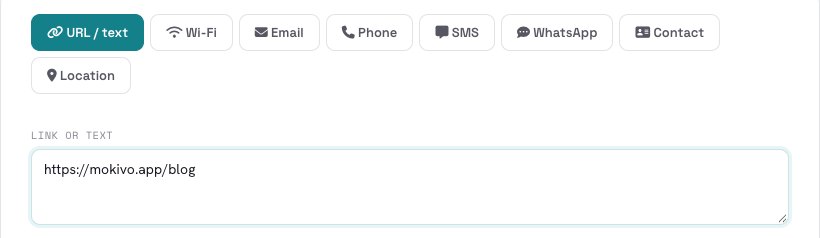
Open the tool and pick a type at the top: URL / text, Wi-Fi, Email, Phone, SMS, WhatsApp, Contact or Location. Then fill in the fields. For a link, paste the full address, including https://. The code updates live as you type.
A Wi-Fi code lets guests join your network by scanning, with no password to type. A Contact code adds you to their address book.
2Style the code
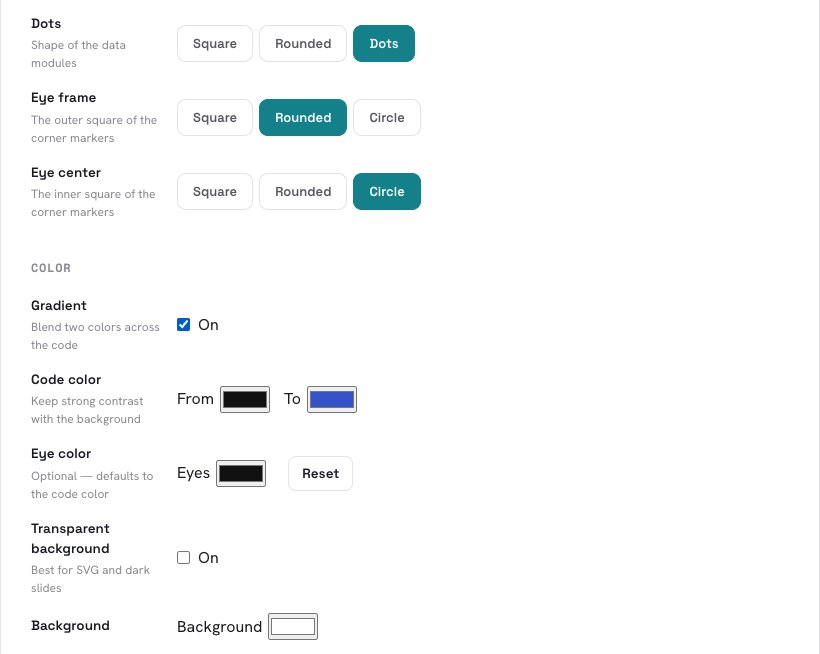
Under Shape, change the Dots (Square, Rounded, Dots), the Eye frame and the Eye center — the three corner markers. Under Color, set the code color, turn on a Gradient to blend two colors, or give the eyes their own color. You can also make the background Transparent, which is great for SVG and dark designs.
Keep strong contrast: a dark code on a light background scans best.
3Add your logo (optional)
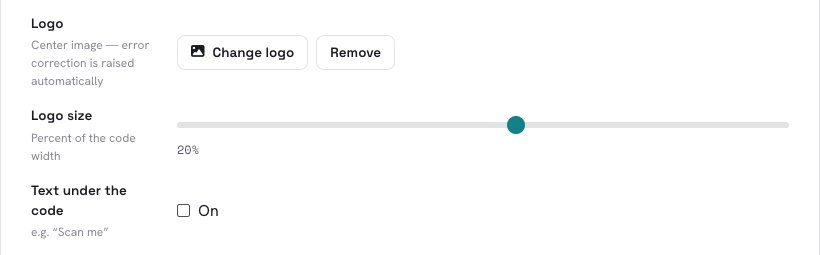
Press Add logo and choose an image. It is placed in the middle of the code. Because a logo covers part of the pattern, the tool raises the error correction automatically so the code still scans, and you can change the Logo size — smaller is safer. You can also add a line of text under the code, such as “Scan me”.
4Choose the size and download
Pick the PNG size — 512 to 4096 pixels wide — and the Quiet zone, the empty border around the code that scanners need. Without a logo you can also choose the error correction level: higher survives more damage but makes the code denser.
Then press Download PNG for images, Download SVG for print and scaling to any size, or Copy image to paste it straight into a document.

5Test it before you print
Always scan the code with a phone — ideally two different phones — before printing a thousand flyers. Check that it opens the right page and that it scans from the distance you expect. If you want to reuse it later, give it a name and press Save this code: your saved codes stay only in this browser and are never uploaded.
Tips for a QR code that scans every time
- Contrast is king. Dark code, light background. Avoid light-on-dark unless you test it, and avoid low-contrast color pairs.
- Keep the logo small. 20% of the width or less. A bigger logo hides data and makes scanning unreliable.
- Leave the quiet zone. The white border around the code is needed; do not trim it.
- Shorter is simpler. A short link makes a less dense code that scans faster and from further away. Long text makes small, crowded dots.
- Print it big enough. As a rule of thumb, at least 2 cm (0.8 in) wide for close-up scanning, and bigger for posters.
- Use SVG for print. It stays sharp at any size.
Make your own QR code in under a minute — free, with no sign-up, and nothing leaves your device.
Open the QR Generator →Frequently asked questions
Is it free?
Does the QR code expire?
Is what I type uploaded?
Can I add my logo?
PNG or SVG?
Which types of QR codes can I make?
The logo in the example is a simple placeholder made for this guide.