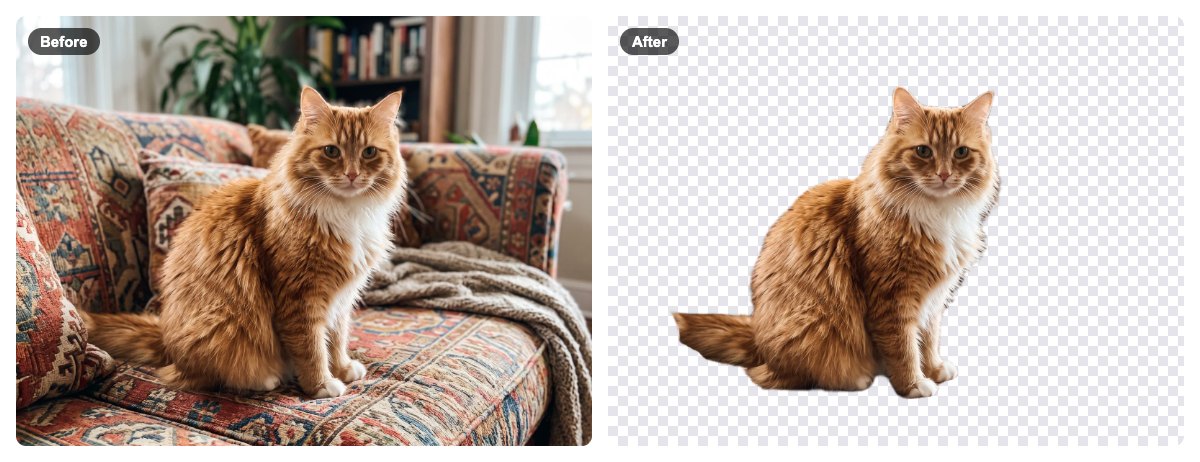
The tool is Remove Background. It runs in your browser, so your picture is never uploaded to any server. The first time you use it, an open-source AI model is downloaded and cached.
You need a photo (JPG, PNG or WebP). It works on products, pets, objects and people.
1Open the tool
Go to Remove Background. No account, no watermark, nothing to install.
2Add your photo and pick a model
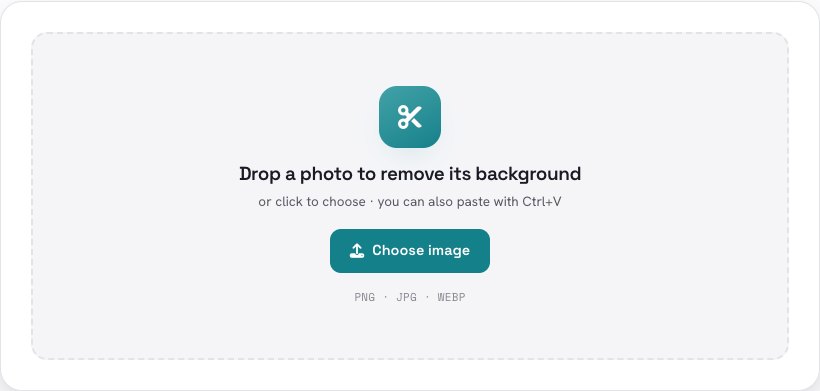
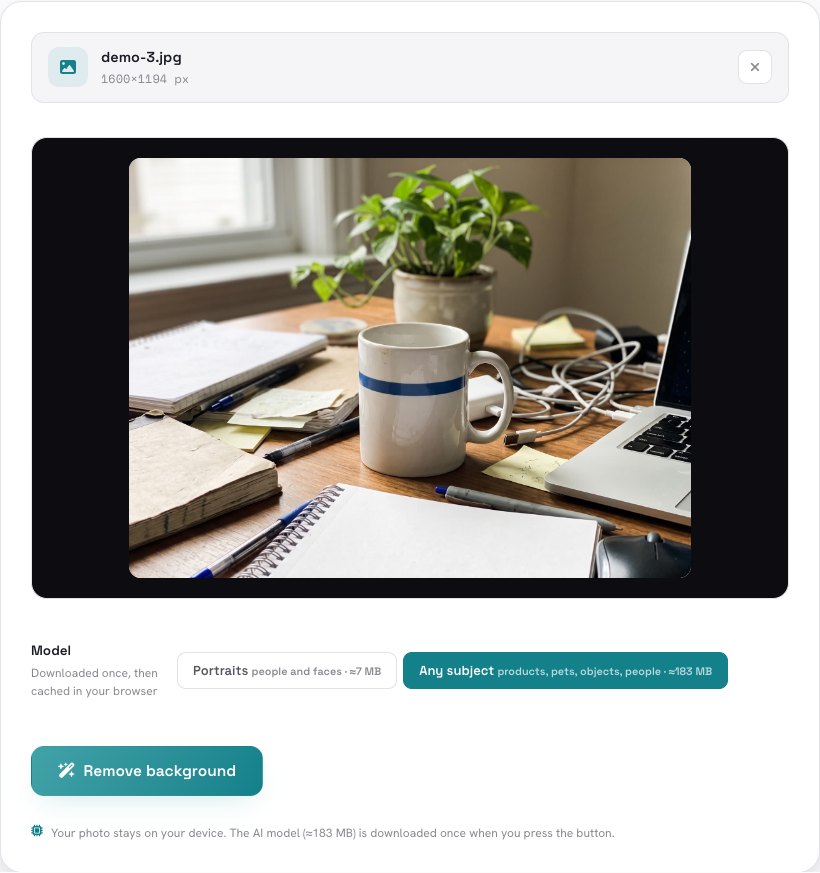
Drop the photo, click to choose a file, or paste with Ctrl+V. Then pick a model:
- Any subject (default) — products, pets, objects and people. It is a bigger download (about 183 MB, once) but gives the best edges, including fur and fine detail.
- Portraits — only for people and faces. It is tiny (about 7 MB) and fast, but on anything that is not a person it can leave holes or remove the whole subject.
3Press “Remove background”
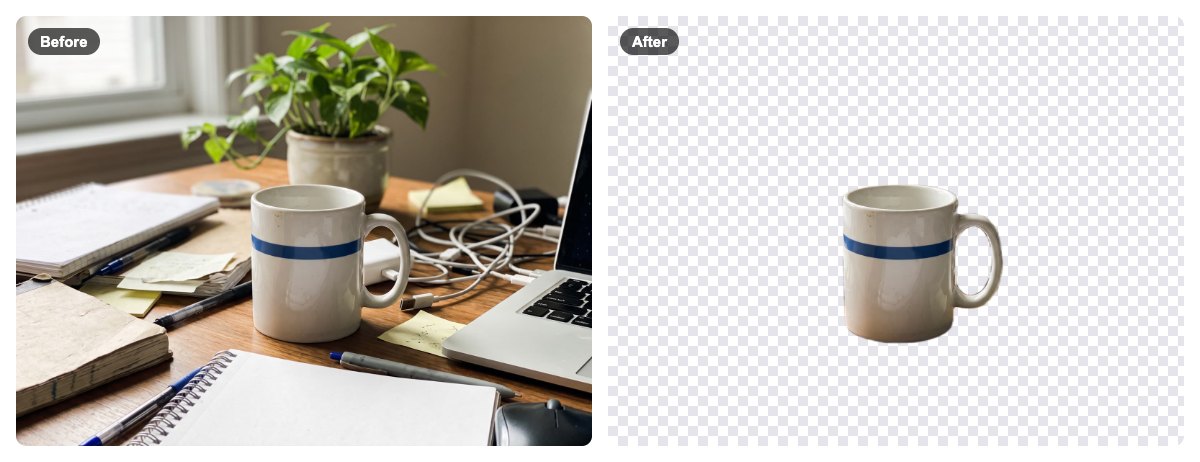
The first time, the model downloads (a progress bar shows it). Then the tool finds the subject and shows it on a checkerboard — that checkerboard means the background is now transparent.
4Touch up the edges (optional)
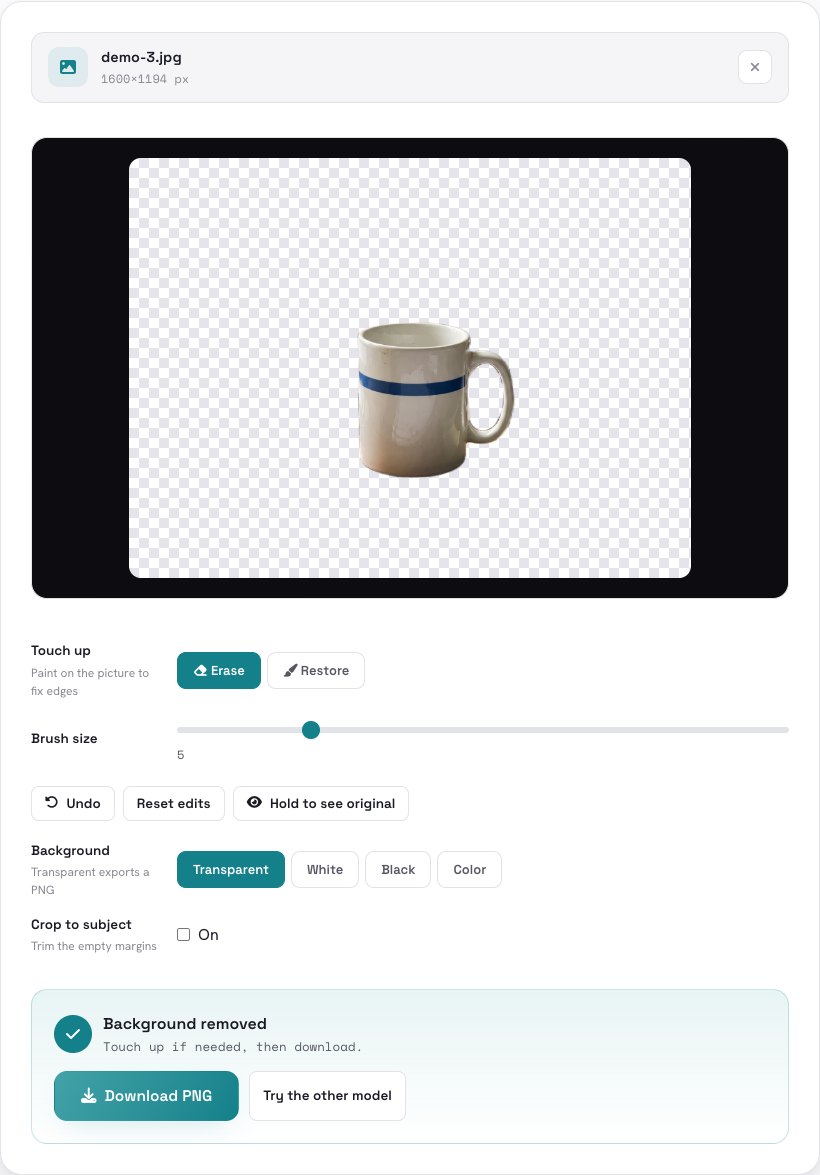
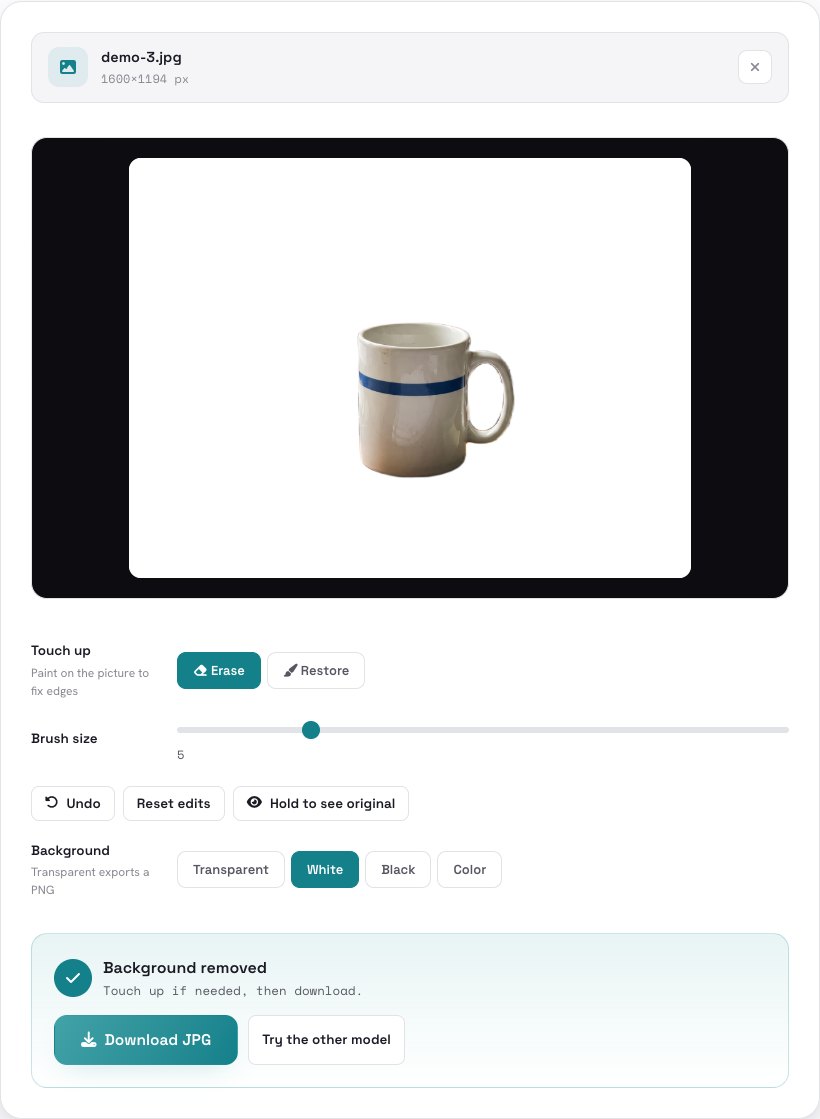
If a small piece was cut away or left behind, use the brush: Erase removes leftovers, Restore brings back parts of the subject. Adjust the brush size, and use Undo or Reset edits if you change your mind. Hair, fur, glass and low-contrast edges are the hardest for any automatic tool.
Your brush strokes are replayed at full resolution when you export, so what you see is what you download.
5Choose a background and download
Under Background choose Transparent (exports a PNG), or White, Black or any Color (exports a JPG on that color). With a transparent background you can also tick Crop to subject to trim the empty margins. Then press Download.
Tips for a clean cut-out
- Pick the right model. If a product or pet comes out with holes, you probably used Portraits — switch to Any subject. The “Try the other model” button under the result does it in one click.
- Contrast helps. A clear subject, good light and a background that differs from the subject give the cleanest edges.
- Use PNG for transparency. JPG cannot be transparent, so the tool exports a JPG only when you choose a solid background.
- Big photos are reduced. Images larger than 4096 pixels on the longest side are scaled down first.
- Check before you use it. AI results can be imperfect; zoom in on hair and shadows before you publish.
Have a photo that needs a clean background? It takes about a minute and stays on your device.
Open Remove Background →Frequently asked questions
Is it free?
Is my photo uploaded?
Which model should I choose?
Why are the edges not perfect?
Can I get a white or colored background instead?
What are the limits?
The example photos in this guide are AI-generated. Cut-outs are made with open-source models (BiRefNet-lite, MIT, and MODNet, Apache-2.0) running in your browser.