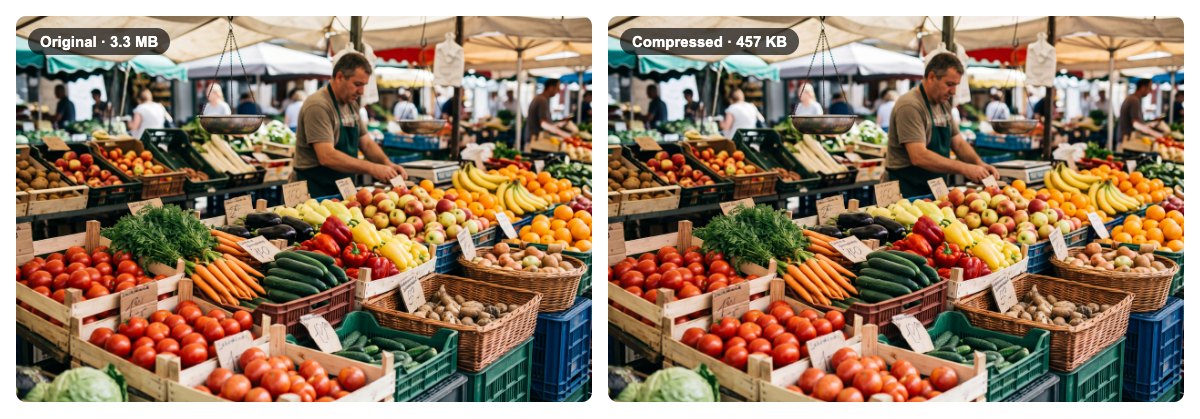
The tool is Image Compress. It re-encodes the picture on your device, so the photo is never uploaded to any server. It shows an estimated size before you export, so you can find the right balance in seconds.
You need a JPG, PNG or WebP image. Compression keeps the pixel dimensions the same; if you also want smaller dimensions, use Resize.
1Open the tool
Go to Image Compress. No account, no watermark, nothing to install.
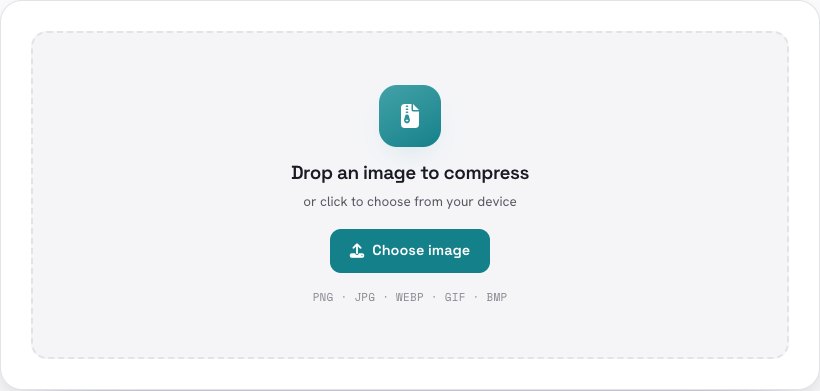
2Add your image
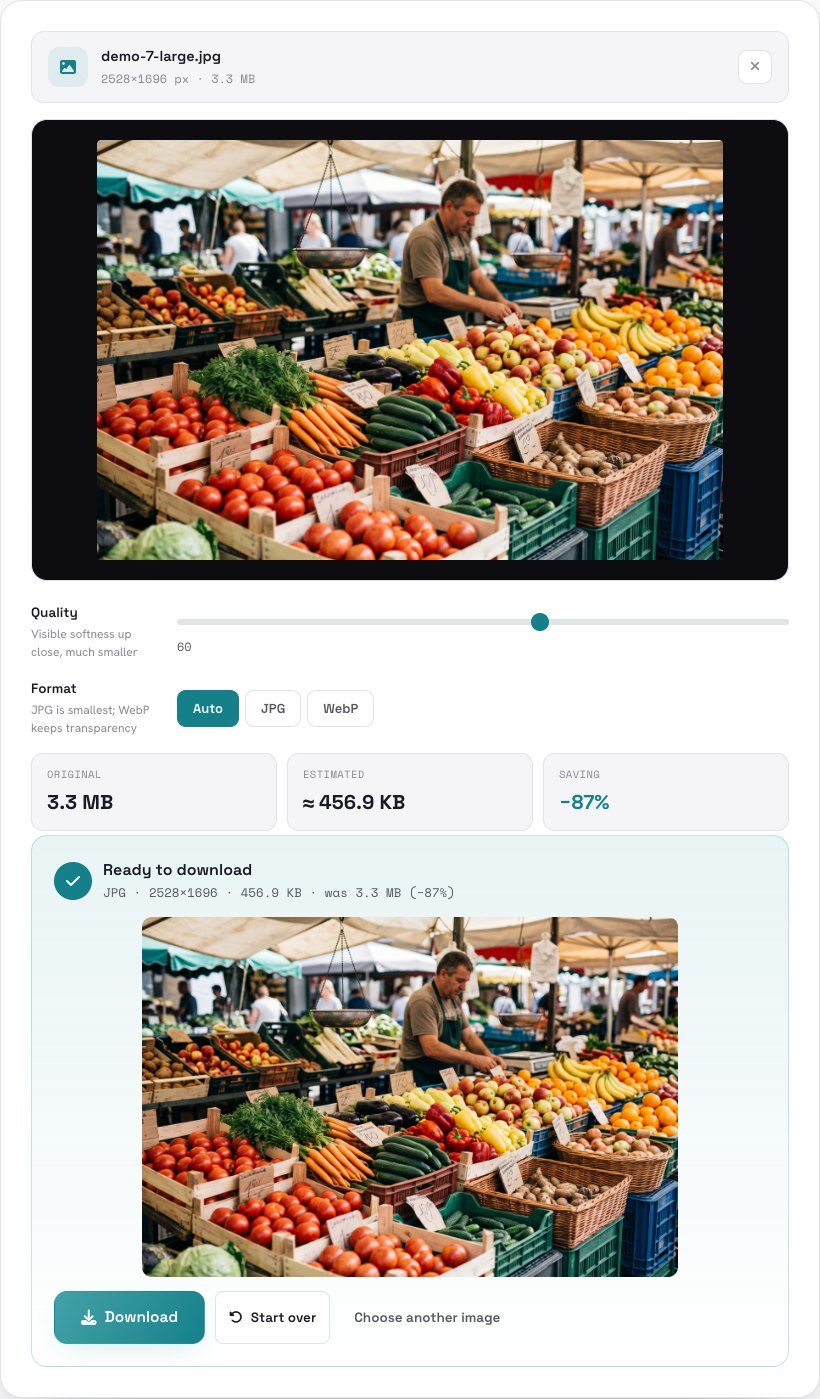
Drop the photo onto the box, click to choose it, or paste with Ctrl+V. The tool shows the original size and, right away, an estimate of the size after compression at the current quality, with the saving as a percentage.
Have many photos? Drop them all at once: they are queued, and you can process them with the same settings and download one ZIP.
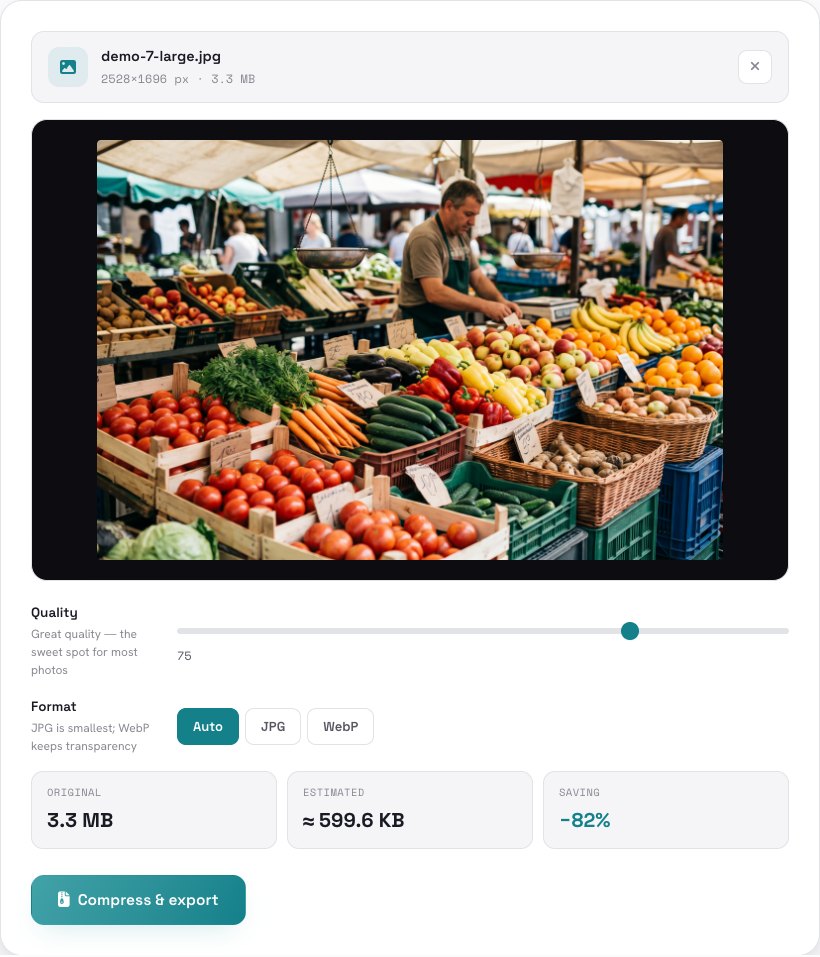
3Choose the quality
The Quality slider goes from 1 to 100. The label under it tells you what to expect: around 75 is the sweet spot for most photos; lower values are much smaller but show visible softness up close. Move the slider and watch the Estimated size and Saving update live.
Have a hard limit, like an upload form that wants “under 200 KB”? Pick it under Target size: the tool then chooses the quality for you.
Under Format, Auto picks a sensible output, JPG is the smallest for photos, and WebP is smaller still and keeps transparency (where your browser can create it).
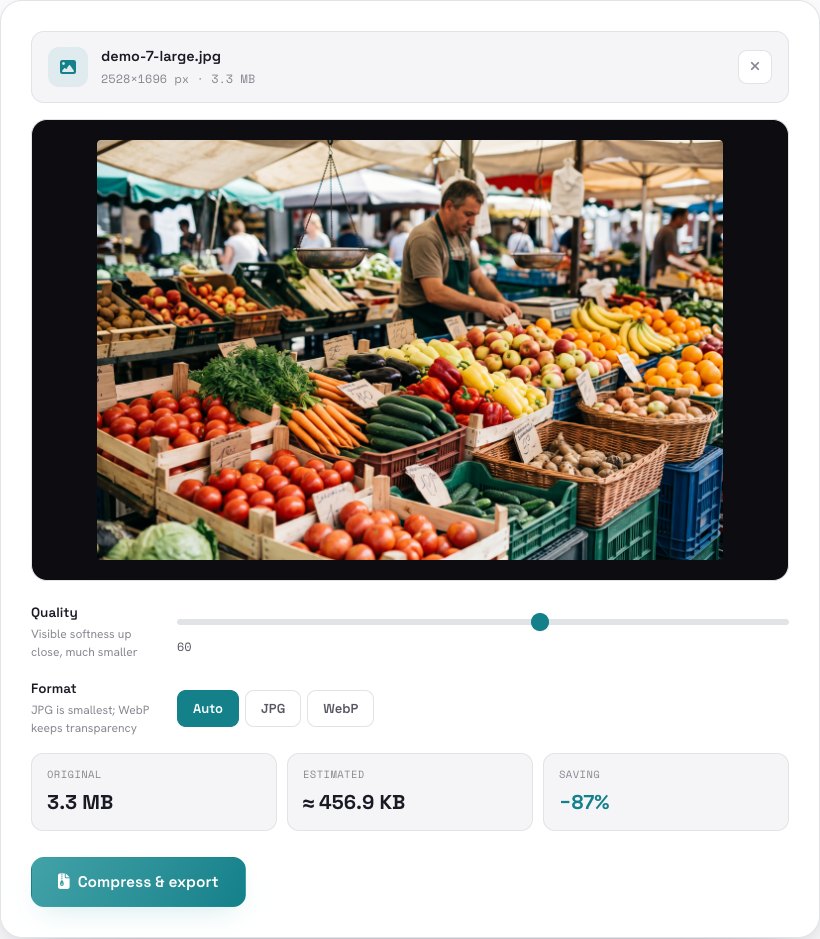
4Compress and download
Press Compress & export. The result shows the final size and a preview. If you are happy, press Download. If not, change the quality and export again — your original is untouched.
Tips for the smallest file that still looks good
- Start at 70–80. Most photos look the same at that range at a fraction of the size. Go lower only if you need to hit a limit.
- Zoom to check. Compression artifacts show up first in smooth areas such as sky and skin. Judge the result at the size it will be shown, not at 400%.
- Resize first for huge photos. A 6000-pixel photo shown at 1200 pixels wastes most of its data. Resizing then compressing gives a much smaller file than compression alone.
- Use JPG for photos and PNG for screenshots with sharp text. PNG is lossless and often larger; for photos JPG or WebP is far smaller.
- Need an exact limit like 200 KB? Choose it under Target size (100 KB, 200 KB, 500 KB, 1 MB or a custom size). The tool finds the best quality that fits under the limit and, if it has to, makes the picture a little smaller. The result tells you what it did — for example “picture reduced to 77% of its size to fit”.
Need a photo under an upload limit? It takes seconds and the image never leaves your device.
Open Image Compress →Frequently asked questions
Is it free?
Is my image uploaded?
Will the quality drop?
Can I compress many images at once?
Does it change the dimensions?
Which format gives the smallest file?
The example photo is AI-generated.