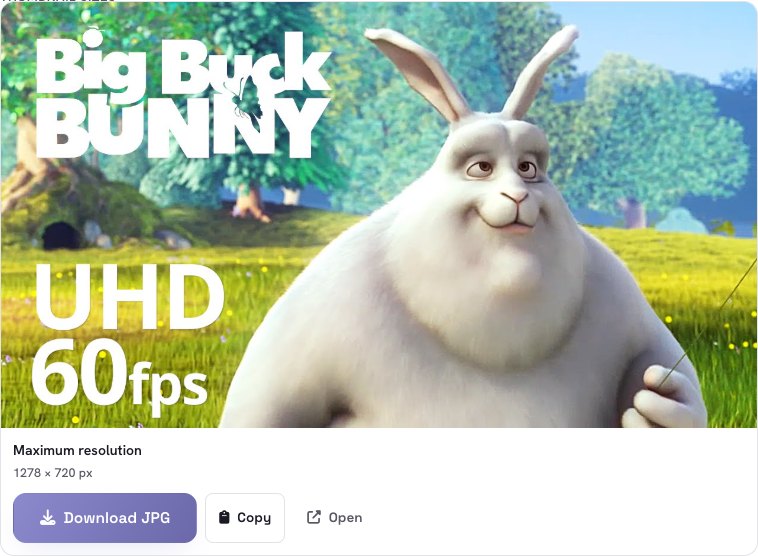
The tool is the YouTube Thumbnail Downloader. Your browser fetches the image straight from YouTube’s image servers, so nothing goes through Mokivo and the link you paste is never sent to us.
You need a YouTube link — a normal watch link, a youtu.be short link, a Shorts, embed or live link, or just the 11-character video ID.
1Open the tool
Go to the YouTube Thumbnail Downloader. No account and no extension.

2Paste the video link
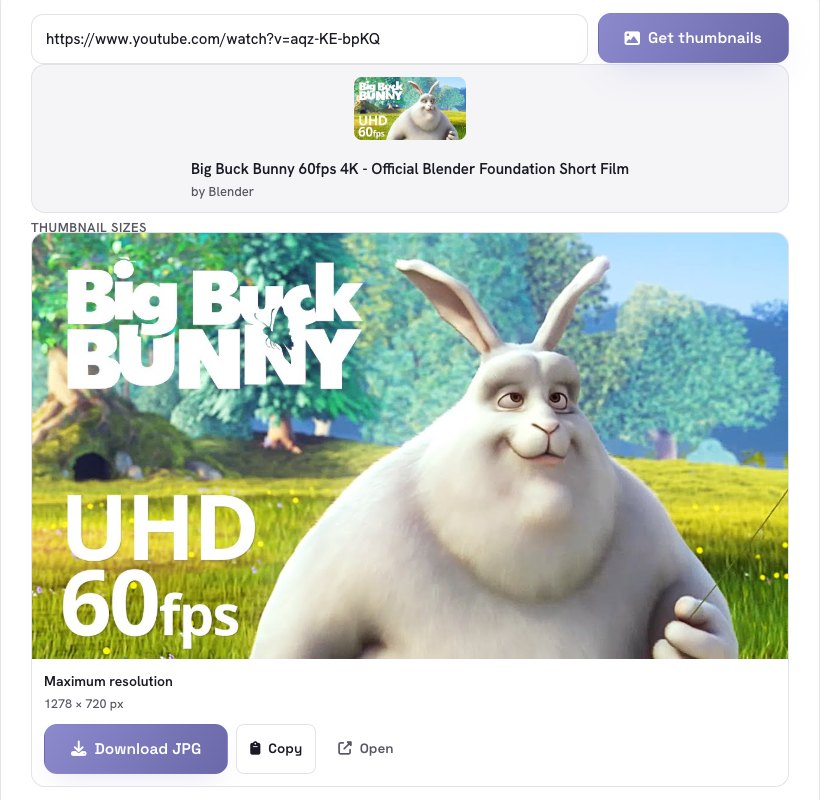
Copy the address of the video from your browser or the Share button on YouTube, paste it into the field and press Get thumbnails (pasting also starts it automatically). The tool shows the video’s title and channel so you know you have the right one, then lists every size available.
3Pick the size you need
The tool lists, from best to smallest: Maximum resolution (1280 × 720), Standard (640 × 480), High quality (480 × 360), Medium (320 × 180) and Small (120 × 90), plus three frames taken from the video. Each shows its real size in pixels.
Older videos and some uploads do not have the 1280 × 720 image. The tool marks missing sizes instead of showing a broken picture; in that case use High quality or Standard.
4Remove the black bars if you need to
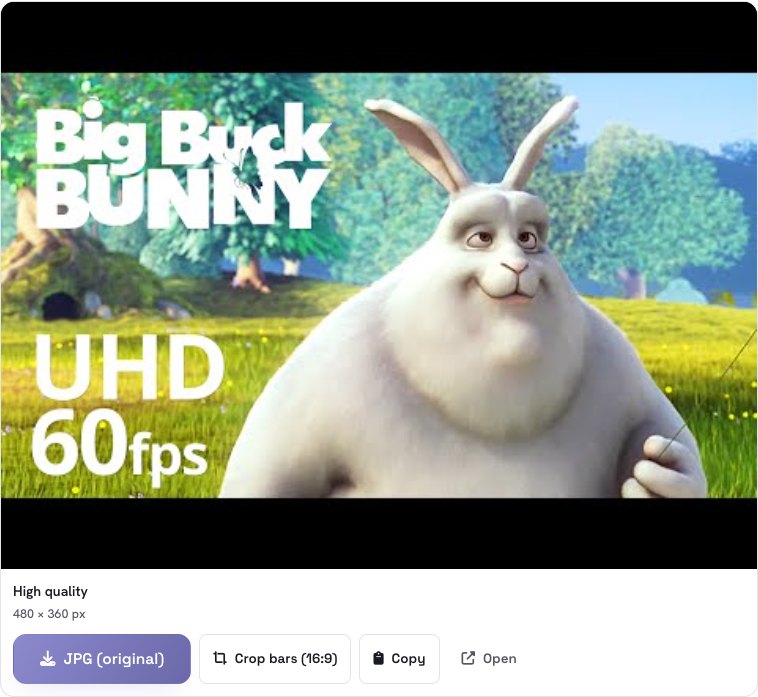
The Standard, High quality and Small sizes are 4:3, so YouTube pads the 16:9 picture with black bars at the top and bottom. They are in the original file. Press Crop bars (16:9) to download a clean, bar-free 16:9 version — for example 480 × 270 from the High quality image.
5Download or copy it
Press Download JPG to save the file, Copy to put the image on your clipboard so you can paste it into a design or document, or Open to view it in a new tab. Everything happens in your browser.
Good to know
- Thumbnails belong to their creators. It is fine to download one to study it, compare designs, build a mood board or credit a video. Do not publish someone else’s thumbnail as if it were yours. To make your own, try the Thumbnail Generator.
- Want to test your own? Use the YouTube Thumbnail Preview to see it in a mock feed before you upload.
- Private or deleted videos have no public thumbnail, and the tool tells you so.
- HD is not guaranteed. The 1280 × 720 image exists only for videos uploaded with a high-resolution thumbnail.
- Shorts work with the same link formats. Their thumbnails are 16:9 images, so a vertical picture can appear with black bars at the sides.
Need a thumbnail in a hurry? Paste the link and have it in seconds.
Open the Thumbnail Downloader →Frequently asked questions
Is it free?
Is the link I paste sent to Mokivo?
What is the best thumbnail size?
Why does my download have black bars?
Why is there no 1280 × 720 thumbnail?
Does it work with Shorts and live streams?
The example video is Big Buck Bunny, © Blender Foundation | www.blender.org, licensed under Creative Commons Attribution 3.0.